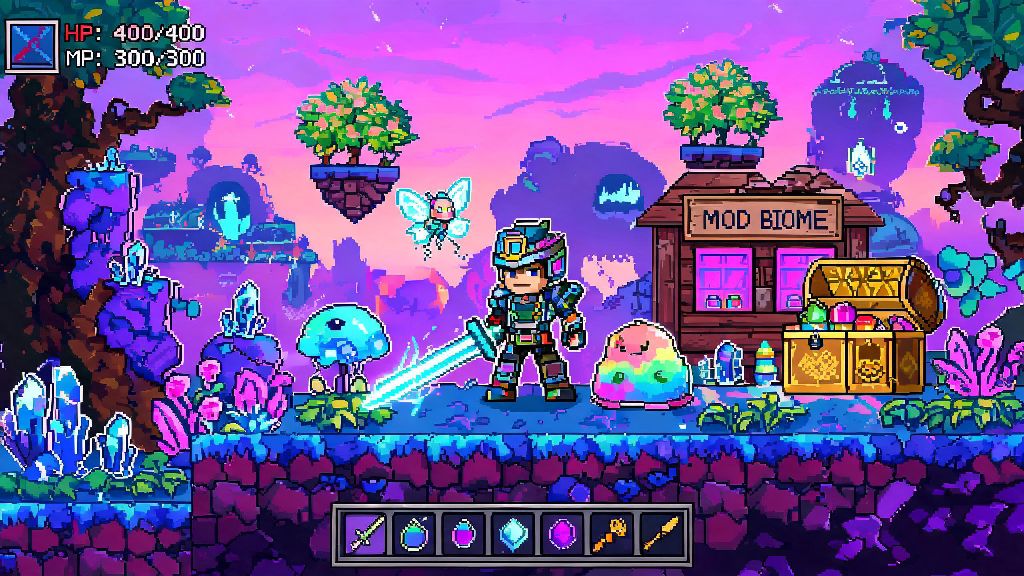
Vanilla Terraria has hundreds of hours of content to dig through, but if you’ve beaten the Moon Lord three times in a row and are craving something new, modding is the best way to breathe life back into the game. Learning how to install mods on Terraria opens up thousands of custom biomes, bosses, items, and even full game overhauls that can make your playthrough feel completely unique. A lot of new players avoid modding because they think it’s too technical, or they worry they’ll break their game. This guide breaks down the entire process in simple terms, works for both Steam and non-Steam game copies, and covers all the common pitfalls to skip.
Pre-Installation Checks to Avoid Common Modding Errors
When you’re preparing to learn how to install mods on Terraria, the first step is not downloading anything yet. You need to take a few quick precautions to make sure you don’t lose existing progress or run into avoidable issues later on. Always back up your vanilla save files before making any changes to your game files, even if you’re using a separate mod loader. You can find your save files in your PC’s Documents folder under the Terraria subfolder, just copy the entire Worlds and Players folders to a separate location on your hard drive.
You also want to make sure your base Terraria game is fully updated to the latest official version. tModLoader, the official supported mod loader for Terraria, is designed to work with the most recent stable release, so outdated base game files can cause compatibility issues. Never use third-party mod loaders from unvetted sources, as they often contain malware or can trigger bans if you accidentally use them to join official vanilla servers.
Step-by-Step Process to Install Mods on Terraria via tModLoader
tModLoader is a free, community-made mod loader that’s officially endorsed by Re-Logic, the developers of Terraria. It runs as a separate application from your base game, so you don’t have to overwrite any vanilla files to use it, and you can switch between vanilla and modded playthroughs whenever you want. If you own Terraria on Steam, you can download tModLoader directly from the Steam store for free, no extra purchases required. Non-Steam players can download the official build from the tModLoader team’s official distribution channels.
Once you have tModLoader installed, launch the app and navigate to the Mod Browser tab from the main menu. You can search for specific mods by name, or browse by category to find content that matches your playstyle. Only download mods from the official tModLoader browser to avoid corrupted files or malware, as mods uploaded to the browser are vetted by the community team for safety. When you find a mod you want, click the download button, and the browser will automatically install any required dependency mods for you.
After you’ve finished downloading all the mods you want, head to the Mods tab from the main menu. Click the toggle next to each mod to enable it, and drag and drop mods to adjust the load order if needed. Library mods that add core functionality for other content mods should always load first, followed by content mods, and finally small quality of life mods. Once you’re happy with your load order, click the Reload Mods button, and you’re ready to start your modded playthrough.
How to Fix Common Post-Installation Mod Issues
Even if you follow every step perfectly, you might run into small issues after you install mods on Terraria, especially if you’re running a large mod list with multiple big content overhauls. Most issues are easy to fix with a little troubleshooting, and you don’t have to delete all your mods to get things working again. Check mod compatibility with your current tModLoader version first, as many older mods are only designed to work with the 1.3 version of tModLoader, and will crash if you try to run them on the 1.4 version.
If your game crashes on launch or throws error messages when you try to load a world, work through these quick fixes in order:
If you’re running a lot of large mods and experiencing lag or frame drops, you can add performance-focused mods like Optimize Terraria or Hero’s Mod (with performance settings enabled) to cut down on resource usage. These mods don’t change core gameplay, they just clean up background processes to make the game run smoother with large mod lists. Never mix 1.3 and 1.4 mods in the same load order, as this will almost always cause irreversible crashes that force you to reset your entire mod list.
Tips to Curate a Stable, Fun Modded Terraria Playthrough
Once you’ve got the hang of how to install mods on Terraria, you might be tempted to download every mod that catches your eye, but that’s the fastest way to end up with a buggy, unplayable mess. If you’re new to modded Terraria, start small first, before jumping into massive overhauls like Calamity or Thorium that add hundreds of hours of new content. I’ve seen new players install 50+ mods on their first try and give up entirely when the game crashes every 10 minutes, and that’s a shame when you can have just as much fun with 5 to 10 carefully picked mods.
Quality of life mods are a great starting point for new modders, as they don’t change core gameplay, just make existing mechanics smoother and less frustrating. Fan favorite QoL mods include Recipe Browser, which lets you search for any item recipe and see what materials you need, Boss Checklist, which tracks which bosses you’ve beaten and what you need to summon the next one, and Magic Storage, which adds a unified storage system so you don’t have to sort through 50 chests to find one item. You can add these to a vanilla playthrough without changing any of the core difficulty or content, so you can get used to how modding works before you add bigger changes.
If you plan to play modded Terraria with friends, make sure every player has the exact same mod list and load order before trying to join a server. Even one small missing mod or a different load order will prevent players from connecting, and can cause world corruption if someone manages to join with a mismatched list. You can export your mod list from the Mods tab in tModLoader and send it to your friends to make sure everyone is on the same page, no manual matching required.
Modding is one of the best parts of the Terraria experience, and the community has created thousands of high-quality mods for every possible playstyle, from silly meme mods that turn all enemies into slimes to hardcore overhauls that make the Moon Lord look like a basic early-game boss. Now that you know how to install mods on Terraria, you can experiment with different loadouts to find what works for you, without worrying about breaking your base game or losing progress. Just remember to back up your saves, only download mods from trusted sources, and don’t be afraid to tweak your mod list if something isn’t working right.