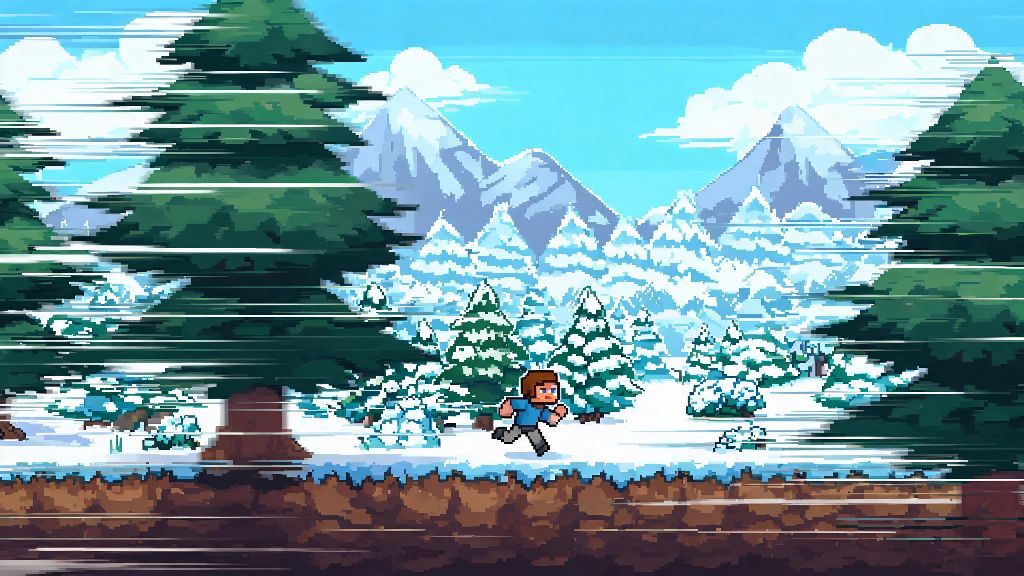
If you’ve ever dug through Terraria’s video settings menu trying to make your world feel more immersive or fix random frame drops, you’ve probably seen the “parallax” slider and wondered what it actually does. I remember the first time I toggled it on by accident back when 1.4 launched, I thought my game was glitching until I realized the distant snow mountains were moving slower than the pine trees I was sprinting past. This guide breaks down what is parallax terraria, how it works, how to tweak it for your specific setup, and whether you should keep it on or off depending on how you play the game.
What is Parallax in Terraria, Exactly?
At its core, parallax is a visual effect that mimics how depth works in the real world. If you’ve ever sat in a moving car and noticed that trees right next to the road zip past fast, but mountains miles in the distance move almost imperceptibly slow, you’ve experienced parallax first hand. Terraria translates this effect to its 2D world by making background layers move at different speeds as your camera pans across the map. The closer a background layer is to your player, the faster it moves, while far-off sky elements and distant landmasses move much slower.
Parallax doesn't impact gameplay mechanics at all — it’s 100% a visual quality of life feature, so it won’t change enemy spawn rates, make your hits miss, or alter how blocks place when you’re building. Re-Logic added the adjustable parallax slider in the 1.4 Journey’s End update, and it’s been a fan favorite for players who want their worlds to feel less like a flat 2D poster and more like a living, breathing place. You won’t gain any competitive advantage or disadvantage by turning it on or off, so you don’t have to stress about making the “wrong” choice with this setting.
How to Adjust Parallax Settings for Your Setup
Finding and adjusting your parallax setting is super simple, even if you don’t mess with game settings often. All you have to do is open the main menu, click “Settings”, then select “Video”, and you’ll see the parallax slider right under the frame rate cap option. It ranges from 0 to 100, so you don’t have to choose between full effect or no effect at all — you can pick an intensity that works for your device and preferences. The difference between 0 and 100 is most noticeable in biomes with lots of background layers, like the Jungle, Hallow, or Snow biomes, while you might barely notice it in the Underground or Cavern layers where there are fewer background elements to shift.
You don't need to restart your game for parallax changes to take effect, so you can test different levels while exploring different biomes to find what feels right. Parallax settings are saved per device, not per world, so you won’t have to readjust it every time you load a new save or join a friend’s multiplayer server. Follow these best practices to pick the right level for you:
If you play on mobile, you’ll want to keep it at 40 or lower to save battery life, as the extra rendering work for full parallax can drain your battery 20-30% faster during long play sessions. I’ve tested this myself on my phone, and turning it down from 100 to 30 added almost an hour of playtime before I had to plug it in.
Common Parallax Issues and Simple Fixes
Most players won’t run into any problems with parallax, but there are a few common glitches and annoyances that come up pretty often, especially for modded players or those on lower-end devices. The most common issue is jumpy or distorted background layers, which usually happens if you have vsync turned off or your frame rate is capped below 60 FPS. The fix is simple: turn on vsync in your video settings, or raise your frame cap if your device can handle it, and the background movement will smooth out immediately.
Another common complaint is motion sickness, which can happen if the background is moving at a very different speed than the foreground for long periods of time. Motion sickness from parallax is far more common than you think, so don’t feel like you’re missing out if you prefer to keep it turned off entirely for comfort. I have a friend who gets dizzy after 20 minutes of playing with full parallax, so he keeps it at 0 and still enjoys the game just as much as I do with it cranked up.
If you’re a builder who spends hours lining up custom background walls with distant landscape elements, you might also notice that parallax makes those elements shift out of alignment when you move around. Turning parallax down to 0 will make all background elements move at the same speed, so your custom builds will look perfectly lined up no matter where you stand to view them. If you’re running a modded playthrough and parallax is glitching even after you adjust your settings, try disabling any texture overhaul or visual mods first — many older visual mods were built before the parallax slider was added, so they can conflict with the effect.
Should You Keep Parallax On or Off for Your Playstyle?
At the end of the day, the choice to keep parallax on or off is entirely up to you, but there are a few playstyles where one option is clearly better than the other. If you’re a casual player who spends most of your time exploring, building bases, and messing around with friends, keeping it at 50 or higher will make your world feel way more alive and immersive, with basically no downsides if you have a mid to high-end device. I’ve spent hours just flying around my Hallow base with full parallax on, and it makes the whole world feel so much bigger than it does with the effect turned off.
If you’re a speedrunner or pro player who focuses on fast boss fights and precise movement, you’ll probably want to turn it off entirely. Moving background elements can be a big distraction when you’re trying to track fast-moving bosses like the Empress of Light or Moon Lord, and even a small distraction can lead to a death that costs you a speedrun PB. A lot of top Terraria speedrunners keep parallax off for this exact reason, even if they have high-end PCs that can handle the effect with no frame drops.
If you’re a content creator who makes build tutorials or world tour videos, turning it off will make your content easier for viewers to follow, as they won’t have to deal with shifting background elements blocking parts of your build. There's no right or wrong choice when it comes to parallax settings — it all comes down to what makes your playtime more fun and comfortable. I personally keep mine at 70 for regular exploring and building sessions, but turn it all the way off when I’m farming bosses for rare drops, because I don’t want any extra visual noise throwing off my dodges.
Next time you’re tweaking your Terraria settings before a play session, you won’t have to scratch your head wondering what is parallax terraria or whether you should mess with the slider. Whether you crank it up to 100 for immersive building sessions, turn it down to 30 for streaming, or switch it off entirely for high-stakes boss fights, it’s one of those small quality of life features that lets you customize your experience exactly how you want it. If you haven’t tested different parallax levels lately, take 30 seconds to adjust the slider next time you load your world — you might be surprised how much it changes the feel of the world you’ve spent dozens of hours building and exploring.