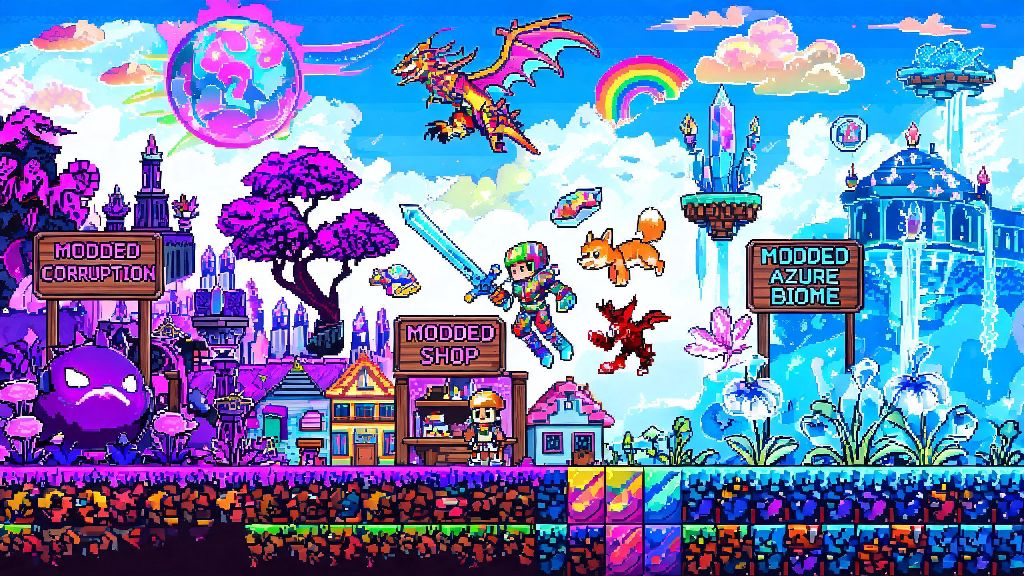
If you’ve sunk 100+ hours into vanilla Terraria and feel like you’ve beaten every boss, collected every item, and explored every hidden biome, mods are the best way to breathe new life into the game. I’ve spent years testing different mod setups, from tiny quality-of-life packs that fix small vanilla annoyances to full overhauls that turn the game into a completely different experience, and I’ve worked out all the common kinks to make the process as painless as possible. This guide will walk you through how to install Terraria mods without the usual headaches of corrupted saves, version mismatches, or broken game files.
Prep Work Before You Install Terraria Mods
Before you download any mods, there are a few quick steps you need to take to make sure your setup stays safe and functional. Skipping these steps is the number one reason new modders run into issues that force them to reinstall the entire game, so it’s worth taking 5 minutes to get them right. First, backing up your vanilla save files is non-negotiable. Even if you follow every step perfectly, unexpected mod conflicts can wipe saves, and you don’t want to lose your 200-hour master mode playthrough over a silly mistake.
You’ll also need to install tModLoader, the official, developer-supported mod loader for Terraria. It’s available as a free separate title on Steam, Epic Games Store, and GOG for anyone who owns a copy of the base game, so you never have to download sketchy third-party loaders from random forums. A quick compatibility check is also key here: make sure your version of Terraria and tModLoader are both updated to their latest stable releases, because version mismatches cause 70% of mod-related launch errors.
It’s worth noting that official mod support is only available for PC right now. You can sideload mods on some mobile versions of Terraria, but the process is less consistent and you won’t have access to the full tModLoader library. Console versions of Terraria have almost no mod support, as most console manufacturers lock down game files to prevent modifications.
Finding and Downloading Safe, High-Quality Mods
Once your tModLoader setup is ready, it’s time to pick out mods. The safest and easiest place to find mods is the built-in mod browser directly inside tModLoader. Every mod on the browser is vetted to be free of malware, and you can filter results by popularity, category, update date, and compatibility with your current tModLoader version. Avoid downloading mods from untrusted third-party sites at all costs— I once tried to download a custom mob mod from a random Discord link a few years back, and it wiped my entire modded save and left adware on my PC. It’s just not worth the risk.
Mods generally fall into a few categories to help you narrow down what you want. Quality-of-life (QoL) mods don’t add new content, but they fix small frustrations with vanilla gameplay. Popular options include Recipe Browser, which lets you look up any crafting recipe in-game without opening a wiki, and Boss Checklist, which tracks which bosses you’ve beaten and what items you need to summon the next one. Content mods add new items, bosses, or biomes without overhauling the entire game, while full overhaul mods like Calamity or Thorium completely rewrite the game loop, adding dozens of new bosses, hundreds of items, and 100+ hours of new gameplay.
When you find a mod you want to use, just click the download button in the mod browser. Most mods require supporting library mods to run, and tModLoader will automatically prompt you to download any missing dependencies, so you don’t have to track them down manually. Once you’re done downloading all the mods you want, go to the “Mods” tab in tModLoader to enable them before you launch the game.
Setting Up Your Mod Load Order and Troubleshooting Common Issues
Load order refers to the sequence in which your mods load when you launch the game, and it’s far more important than most new modders realize. Some mods need to load before others to work correctly, especially library mods and large overhaul mods that edit core game files. tModLoader has a built-in auto-sorter that works perfectly for most small to medium mod packs, but if you’re running 30+ mods, you may need to adjust the order manually.
As a general rule, library mods should load first, followed by large overhaul mods, then smaller content mods, then QoL mods, and finally cosmetic mods last. Load order errors are the second most common cause of mod crashes, right after version mismatches. If you get a crash on launch and all your mods are updated, your first step should be to check your load order against recommendations on mod pages for any large overhauls you’re using.
If you’re still running into issues, there are a few simple fixes that solve 90% of common problems. If your game crashes on launch, disable all mods and enable them one by one to find the problematic mod. If you get missing texture errors, that almost always means you’re missing a required dependency mod for one of your enabled mods. If your existing modded save won’t load, check that all mods you used to create the save are still enabled and running the same version they were when you last played. I once spent three hours troubleshooting a crash on a 72-mod pack last year before I realized I had two conflicting biome mods that both tried to edit the underground jungle. Once I removed one of them, the entire pack ran perfectly for the full 80-hour playthrough.
Tips for Optimizing Your Modded Terraria Experience
Once your mods are running smoothly, there are a few small tweaks you can make to get the most out of your playthrough. If you’re running a lot of content mods, you may notice frame drops in busy biomes with lots of enemies or particle effects, even on high-end PCs. Performance optimization mods like Hero’s Mod can cut down on lag drastically, even if you don’t use the mod’s built-in cheat or quality-of-life features. You can also turn down particle effects in your in-game settings to reduce frame drops during big boss fights.
Another useful trick is to create separate mod profiles for different playthroughs. tModLoader lets you save different sets of enabled mods and load orders as profiles, so you can have one profile for a Calamity overhaul run, one for vanilla plus QoL mods, one for silly fun mods like the Pokemon Terraria pack, and more. I have 7 different profiles set up for different groups I play with, and it saves me so much time when I switch between playing with my casual friend group and my more hardcore modded run group.
Don’t be afraid to test out small, niche mods you stumble across in the browser. Some of my favorite modded playthroughs came from random tiny mods I tried on a whim, like one that adds custom pet slimes you can raise, or another that adds entirely new mini-biomes scattered around the world. Just make sure to check the mod’s comment section first to see if other users report conflicts with any mods you’re already running, and back up your save before you add new mods to an existing playthrough.
Modded Terraria opens up thousands of hours of new content, from small QoL changes that fix tiny vanilla annoyances to full overhauls that make the game feel entirely new. Once you know how to install Terraria mods safely and troubleshoot common issues, you can tweak the game to fit exactly what you’re looking for, no matter how many hours you’ve already put into the base game. Just remember to back up your saves first, and don’t be afraid to experiment with weird, unexpected mods—you never know what hidden gems you’ll find.